
Visualization / Assists
Click Actions and Visibility
Make text, images, icons, shapes and buttons do something when clicked, and show or hide them by parameter, user or role.
Click actions
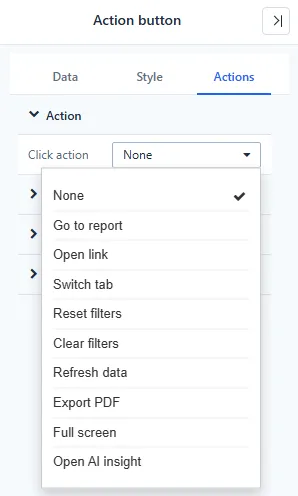
Image, Icon and Shape have Actions → Click action → On click (Text and Rich text do not). The Action button has the same actions, with the same names, under Actions → Action → Click action.
| Action | What it does | Settings |
|---|---|---|
| Go to report | Opens another report page | Jump settings: target page, how it opens (current tab, new tab, tooltip, pop-up), Pass filters by matching field names, Pass report parameters, and a target field or Do not pass for each page filter |
| Open link | Opens a web address | Link URL, Open in: Current tab, New tab (default), Tooltip, Pop-up |
| Switch tab | Shows a tab of a Tabs component | Tabs component, Switch to |
| Reset filters | Returns all filters to their opening values | – |
| Clear filters | Sets clearable filters to All | – |
| Refresh data | Re-queries all data components; the page is not reloaded | – |
| Export PDF | Exports the page | – |
| Full screen | Shows the page full screen; click again to leave | – |
| Open AI insight | Opens an AI reading of the data | Analysis scope: Whole page, Current tab page, Selected components |
- Actions run in the report (Preview and view mode). In the editor a click selects the component, except on the Action button, which also runs its action in the editor (report pages and links open in a new tab there; Reset and Clear filters only work in the report).
- Go to report passes the current selections of the page’s filters to the target report. With Pass filters by matching field names on (the default), each filter goes to the field with the same name, so a target on the same analysis model needs no mapping; otherwise pick a target field for each page filter, or Do not pass. Pass report parameters sends the report parameters to the parameters with the same names. Date filters pass their start and end; hierarchy tree filters with several selected paths, numeric ranges and advanced filter expressions are not passed.
- The pointer turns into a hand only when the action is complete, for example Open link with a URL.
- Links, inputs and buttons inside the component keep their own behaviour.
- A Shape without an action lets clicks pass through to the components below, so it can be used as a background panel.
Reset filters and Clear filters work like the Filter button.
Visibility
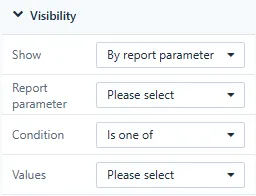
Actions → Visibility → Show is available on Text, Rich text, Image, Icon, Shape, Action button, Web page and AI insight.
| Show | The component is visible |
|---|---|
| Always (default) | Always |
| Hidden in preview | Only in the editor, for notes to other authors |
| By report parameter | When Report parameter meets the Condition for the Values |
| By current user | For the users you list |
| By current role | For the roles you list |
Condition: Is one of, Is not any of, Is empty, Is not empty. A rule that is not complete has no effect. The parameter value comes from a filter bound to the parameter, then the URL, then the parameter’s default; components show and hide as it changes.
In the editor, hidden components are drawn semi-transparent and marked Hidden in preview or Conditional.

Visibility is a layout tool, not security: hidden components still belong to the report. Use permissions and row-level security for data access.
Disable an Action button
The Action button also has Actions → Disable condition → Disable: Never (default) or By report parameter. A disabled button shows its disabled style and does nothing. The Data button (legacy) keeps When there is no data for buttons bound to a field whose query returns nothing.
Related: Assist Components · Dynamic Values · Tabs