
Analysis
How Filters, Clicks, Drilling and Parameters Combine
Where the conditions on a component come from, how they combine, what Refresh, Reset filters, Clear filters and Apply undo, and how to read the Conditions list.
The numbers in a chart can be narrowed by several things at once: its own filters, filter components, clicks on other charts, drilling and values passed into the report. The chart’s query applies all of them, and its Conditions button lists them by source.
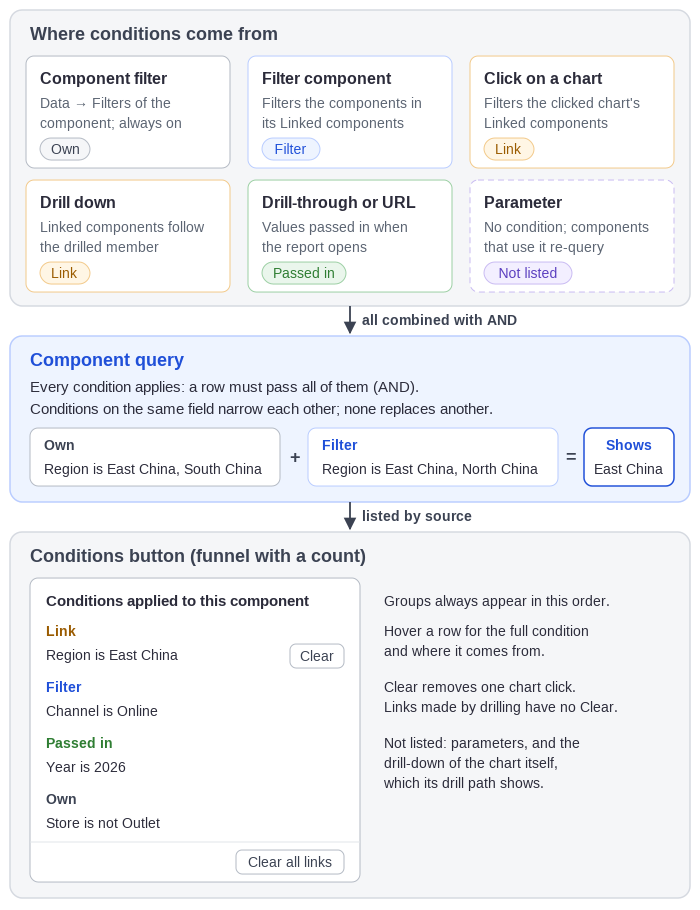
Where conditions come from
| Source | Narrows | Reader can undo it | Listed under |
|---|---|---|---|
| Component filter (Data → Filters) | That component only, always | No | Own |
| Filter component with Data source → Model field | The components checked in its Linked components. A Date component with Filter all components (the default) filters every component the date can filter. | Change or clear the filter | Filter |
| Click on a chart | The clicked chart’s Linked components | Click again, or Clear in Conditions | Link |
| Drill down | The drilled chart shows the next level of the clicked member, and its Linked components are filtered by that member | Drill up or the drill path | Link, without Clear |
| Drill-through or the report URL | The components of the opened report whose model has the field | No | Passed in |
| Parameter | Nothing: it adds no condition. Components whose formula, title, text or model SQL uses it re-query with the new value. | Change the filter bound to it | Not listed |
A value passed as default_<filter>=… in the URL is the opening selection of that filter component, so it is listed under Filter, not Passed in.
How the conditions combine
All conditions apply together: a row is counted only if it passes every one of them. A chart filtered by Channel is Online (filter component) and by a click on East China shows online sales in East China.
Clicks follow their own rule: with Ctrl+click, points in the same chart are combined with OR, and selections in different charts with AND. See Cross-Filtering.
Conditions on the same field narrow each other; none of them replaces another. This is also true when a component filter and a filter component use the same field:
| Component filter (Own) | Filter component | The component shows |
|---|---|---|
| Region is East China, South China | Region is East China, North China | East China |
| Region is not East China | Region is East China, South China | South China |
| Region is not East China | Region is East China | No data |
So a filter component cannot show more than a component filter allows. To let readers choose freely on a chart, remove the component filter on that field, or leave the chart out of the filter’s Linked components.
Changing any filter component clears the chart clicks on the page.
Components on another model
A filter or a click reaches a component on another analysis model only through a matching field: the server looks for the same level by unique name, then by caption. Members are matched by name, so both models must use the same member names. A condition without a matching field is dropped for that component; if a click has no matching field at all, the component is not re-queried and its Conditions list shows no link. See Cross-Model Analysis.
Apply mode
With a Filter button set to Action → Apply on the page, changes to filter components wait until the reader clicks Apply. Clicks on charts, drilling, paging and tab switches stay immediate and use the filter values of the last Apply. Clicking Apply clears the chart clicks, the same as changing a filter on a page without the button. Filters bound to a parameter are not deferred.
What each button undoes
Refresh in the report toolbar, and the Reset filters and Clear filters actions of a Filter button, when the report is opened or previewed:
| Refresh | Reset filters | Clear filters | |
|---|---|---|---|
| Filter components | Back to the opening value, including default_ URL values |
Back to the opening value | Set to All. Required single selections and changed Date components go back to the opening value. |
| Chart clicks (Link) | Cleared | Cleared | Cleared |
| Drill-downs | Back to the top level | Kept | Kept |
| Changes waiting for Apply | Discarded | Applied with the reset | Applied with the clear |
| Component filters (Own) | Kept | Kept | Kept |
| Passed-in values | Kept | Kept | Kept |
| Server cache | Cleared, then every component re-queries | Kept | Kept |
To undo a single condition:
| To remove | Do this |
|---|---|
| One chart click | Clear next to it in Conditions, or click the point again |
| All chart clicks | Clear all links in Conditions |
| One filter’s selection | Clear selections (eraser) in the filter’s toolbar, or × in a Dropdown; on a Date component, Reset to default |
| A drill-down | Drill up, or click an earlier segment of the drill path |
Read the Conditions list
Point to the component and click the funnel with a count in its toolbar. The list Conditions applied to this component groups the conditions in this order; empty groups are left out:
| Group | Contains |
|---|---|
| Link | Clicks on other charts, and the members drilled in other charts. Each click has Clear; Clear all links removes them all. Links from drilling have no Clear. |
| Filter | Filter components on the page that filter this component |
| Passed in | Values from a drill-through or the URL |
| Own | The component’s own filters |
Each row reads Field is value or Field is not value. Ranges read Field is 10,000 ~ 39,696, with ≥ or ≤ when one end is open; a Hierarchy table filter lists the members selected at each level, for example Family · Department is Drink · Beverages. A rule such as contains or a relative period reads Field matches a custom condition, and Field is (none) means the conditions on that field left no member. Hover a row to see the full condition and where it comes from, for example From: Passed from jump.
Parameters and the drill-down of the chart itself are not listed; the drill path shows the drill. When a component is empty, it says No data under the current link conditions or No data under the current filters; the toolbar still appears on hover, and Conditions opens the same list, where links can be cleared.
Related: Exploratory Analysis · Linking and Cascading Filters · Creating Parameters