
Subscriptions & Alerts
Understanding Subscriptions and Alerts
What subscriptions and metric alerts send, who can create them, whose data each message carries, how people receive them, and what the server needs before anything is delivered.
Datafor can bring numbers to people instead of waiting for them to open a report:
- A subscription sends a dashboard on a schedule: a screenshot, the key figures, optionally a PDF, Excel exports of tables and a short AI brief.
- A metric alert checks one measure on a schedule and sends a message only when a condition is met, for example Net Sales last month below 500,000 or Paid Orders down more than 10% on the previous month. It can add an AI breakdown of what drove the change.
- A paginated report subscription produces a paginated report as PDF, Excel, Word or CSV and sends the file. It is created in the paginated report viewer; see Paginated Report Subscriptions.
All three use the same recipients, the same delivery channels and the same message templates.
| Subscription | Metric alert | |
|---|---|---|
| Sends | The dashboard, every time it runs | A message only when the condition is met (and again on recovery, if you ask for it) |
| Created from | Subscribe in the dashboard toolbar | Set alert in a chart’s menu, or in a Metrics Library metric |
| Runs | Daily, on workdays, weekly, monthly, or only when you click Run now | Hourly, daily, weekly or monthly |
| Data shown to a person | That person’s own data | The owner’s data, the same for everyone |
| Managed in | My account › My subscriptions & alerts | My account › My subscriptions & alerts |
The AI assistant inside a dashboard can also set either one up from a sentence such as send me this dashboard every Monday at 8 or tell me when net sales drop more than 10% month on month. It replies with a suggestion card; Create opens the normal editor with the fields filled in, and nothing is saved until you click Save.
How a run works
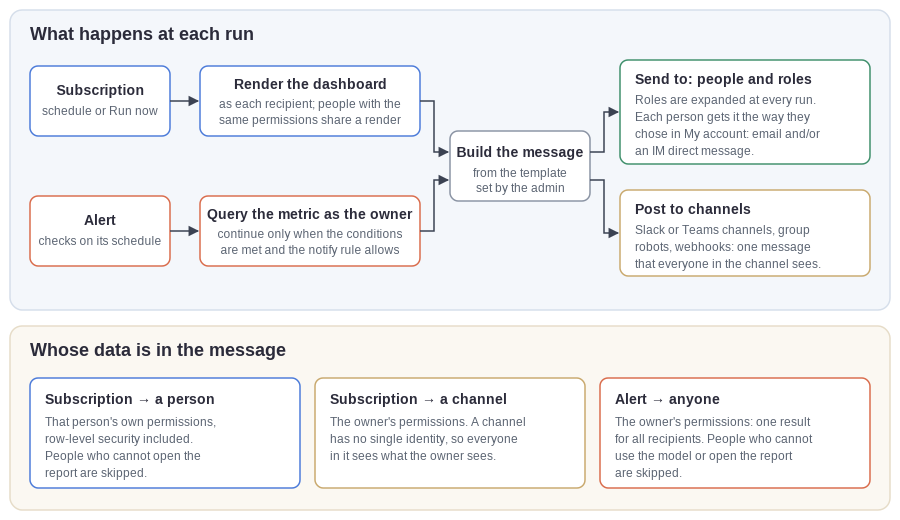
Whose data is in the message is the part to get right:
- A subscription sent to a person is rendered with that person’s own permissions, row-level security included. Two people on the same subscription can receive different numbers. People with identical permissions share one render, which keeps large recipient lists fast; when a report’s data depends on who is signed in (for example a SQL view that uses the login name), each person is rendered separately automatically.
- A subscription posted to a channel is rendered once with the owner’s permissions, because a group chat has no single identity. Everyone in the channel sees what the owner sees. The editor tells you this when you add a channel.
- An alert is evaluated with the owner’s permissions and gives one result for everyone. The message says so.
Recipients who could not see the data themselves are skipped, not given access: people who cannot open the report, and for alerts, people who cannot use the model. The editor lists them before you save.
How people receive messages
Recipients do not depend on the person who created the subscription for the delivery method. Each person chooses in My account › My subscriptions & alerts › How I receive: email, a direct message in an IM app the administrator has connected (Microsoft Teams, Slack, WeCom, DingTalk, Feishu), or both. People who never chose get the administrator’s default, which is Email only unless it has been changed. If none of a person’s chosen ways can reach them (for example they ticked Slack but are not linked to it), email is used instead.
Recipients can also opt out: under Sent to me each person sees what others send them and can turn off Receive for any of it. The owner sees who stopped, but cannot turn it back on for them.
Channels are different: a message posted to a Slack or Teams channel, or to a group robot (WeCom, DingTalk, Feishu) or webhook set up by an administrator, is one shared message.
Who can create what
| User type | Subscriptions | Alerts |
|---|---|---|
| Administrator | Any number; any recipients, roles and channels | Any number |
| Creator | Up to 20 by default; any recipients and roles; only the channels an administrator has authorized | Up to 20 by default |
| Reader | Only for themselves, up to 5 by default; no channels | Only restricted alerts from a chart, sent to themselves, up to 5 by default |
Administrators change these limits on the Subscriptions & alerts settings page. Everyone sees and manages only their own subscriptions and alerts; administrators see everyone’s on that page and can edit, delete or transfer them to another owner.
What the server needs
The Subscribe button and Set alert appear once the subscriptions and alerts plugin is installed. Delivery then depends on a few settings, all described in Setting Up Delivery:
| Needed for | Requirement |
|---|---|
| A working mail server under Settings › Notifications › Email | |
| Screenshots, PDF, Excel, figures and the AI brief | The render service, installed with the AI Agent. Without it a subscription still sends its message with the Open report link, but none of these. Alerts do not need it. |
| AI brief and AI analysis of alerts | The AI extension and a configured AI service, plus a daily budget above 0 |
| IM direct messages and Slack or Teams channels | An app under Settings › Notifications › IM platforms, and people linked to it |
| Group robots and webhooks | A channel under Settings › Notifications › Delivery channels, see Delivery Channels |
| Links that work outside the server | Settings › Access & Integration › Site address set to the address people use |
Schedules, relative dates and alert periods all use the time zone of your tenant: the platform time zone, unless a tenant administrator set another one. Editors show the next run in that zone and add the offset, such as (UTC+08:00), when your browser is in a different one.
In this section
- Subscribing to a Dashboard
- Metric Alerts
- Managing Your Subscriptions and Alerts
- Setting Up Delivery (administrators)
- Delivery Channels (administrators)
- Monitoring and Limits (administrators)