
Analysis
Creating Parameters
Create report and global parameters, choose their value source, and reference them in formulas, titles, text, model SQL and URLs.
A parameter is a named value, such as GrowthRate = 0.1 or Scenario = Base, that formulas, titles, text and queries read. Readers change it through a filter bound to the parameter, or through the report URL.
| Kind | Scope | Where you manage it |
|---|---|---|
| Report parameter | One report | Report editor toolbar → Manage parameters (sliders icon) |
| Global parameter | Every report and analysis model | Console → Tools → Parameters (administrators only can change them) |
| System variable | The signed-in user and session, read-only | Listed under Tools → Parameters → System variables |
If a report parameter and a global parameter have the same name, the report uses its report parameter and the editor warns you.
Create a report parameter
- In the report editor, click Manage parameters in the toolbar.
- Click +.
- Fill in the dialog and click Save. Then save the report.
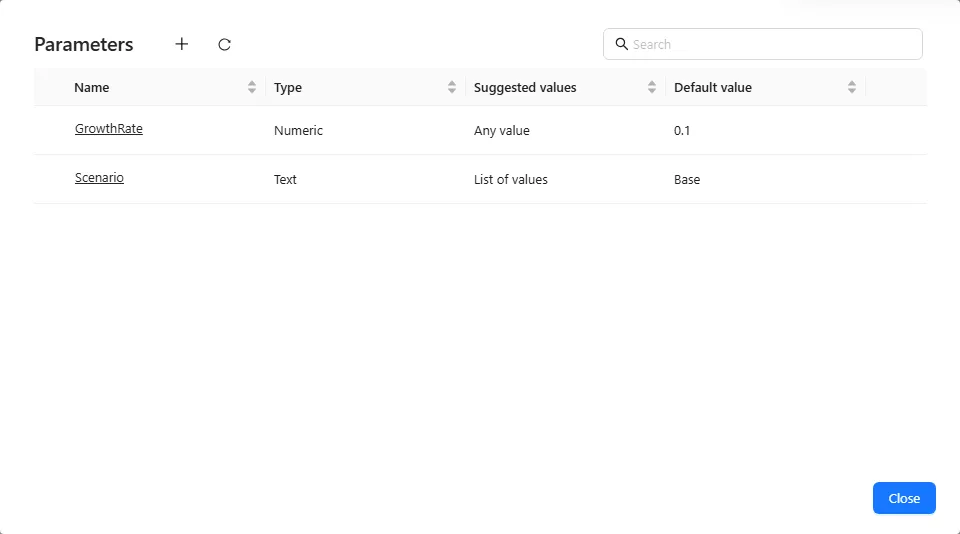
| Field | Rules |
|---|---|
| Name | 1–32 characters: letters, digits, underscores, dots and Chinese characters; must not start with system.. Names are case sensitive. |
| Description | Optional; shown to authors. |
| Type | Text, Numeric or Date. Changing the type clears the value source and default. |
| Suggested values | Any value, SQL or List of values. |
| Default value | A number box, a date picker (stored as YYYY-MM-DD) or a choice from the list, depending on the type. |
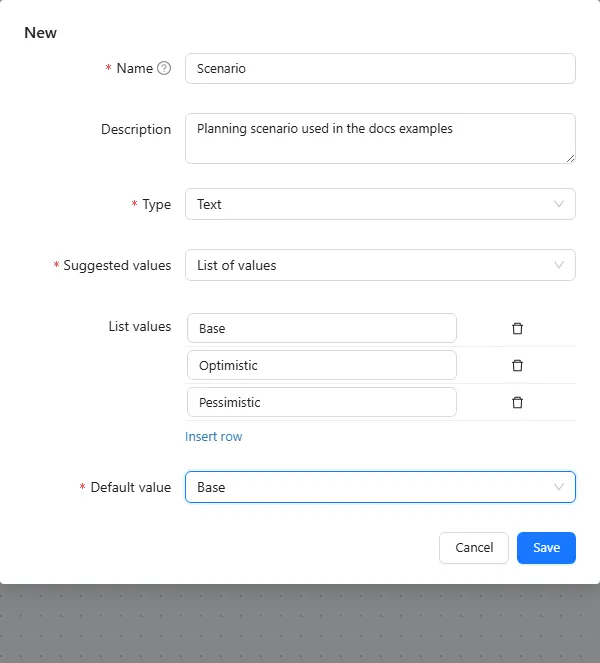
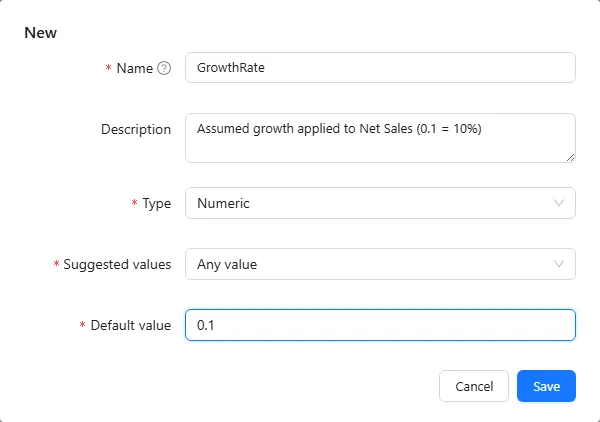
The value source decides which filters can drive the parameter:
| Suggested values | Bind it to |
|---|---|
| List of values or SQL (any type) | Dropdown, List box, Button group, Radio/Checkbox |
| Any value, Numeric | Numeric slider |
| Any value, Date | Date component |
SQL values
With SQL, enter a single SELECT (or WITH … SELECT) statement on a connection you can read. The first column supplies the values, and the preview reports 12 rows returned; the first column “region” is used for the values. At most 1,000 rows are used; statements that write data are rejected.
Delete a parameter
Deleting a parameter lists where it is used (Used in 3 places: …). A report parameter deletion can be undone until you save the report.
Global parameters
Administrators create global parameters in Tools → Parameters with the same dialog. Other users see a read-only list. Delete a global parameter only after checking that no report or model still references it.
System variables
System variables describe the current user and session. Use them in calculated measures (ParamRef("system.username")), dynamic text ({{param.system.username}}), model SQL (#{system.username}, with # instead of the $ used for report and global parameters) and default tab rules. A row access condition accepts only Current user name (system.username) and Current user’s roles (system.business-roles-array). System variables cannot be bound to a filter.
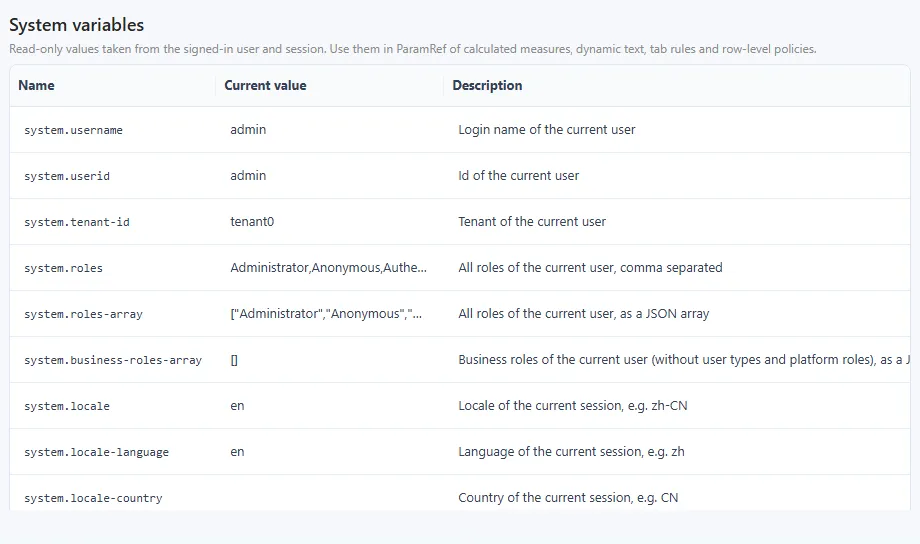
| Variable | Value |
|---|---|
system.username, system.userid |
Login name and id of the user |
system.tenant-id |
Tenant of the user |
system.roles, system.roles-array |
All roles, comma separated or as a JSON array |
system.business-roles-array |
Business roles only (without user types and platform roles), as a JSON array |
system.locale, system.locale-language, system.locale-country |
Locale of the session, such as zh-CN, zh, CN |
The user profile fields are available as system.name, system.company, system.dept, system.title, system.email, system.mobile, system.dob (date of birth) and system.description. An empty field gives an empty string. Values are cached for the session. A change you make to your own profile applies at once; an administrator’s change to someone else’s profile applies at that user’s next sign-in.
Every query evaluates system variables with the identity of the user who runs it. Before 10.00, a query could occasionally be evaluated with another signed-in user’s identity; see the release notes.
Use a parameter
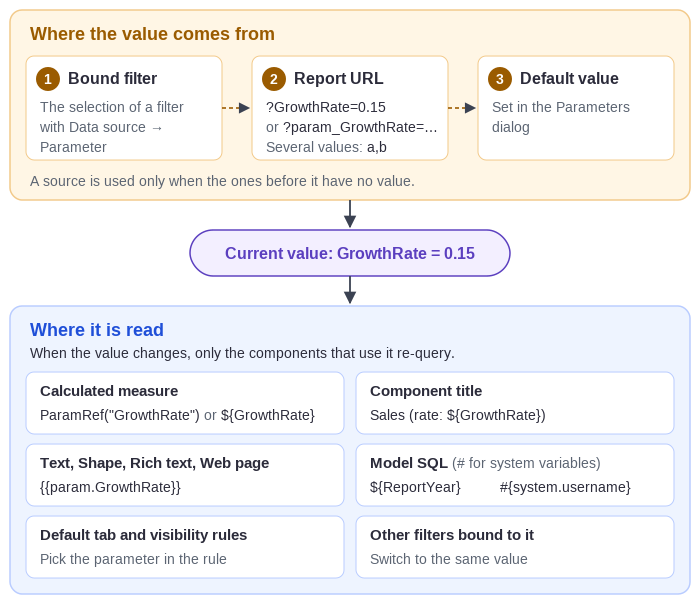
| Where | Syntax | Example |
|---|---|---|
| Calculated measure | ParamRef("name") or ${name} |
[Measures].[Net Sales] * (1 + ParamRef("GrowthRate")) |
| Component title | ${name} (see Component titles) |
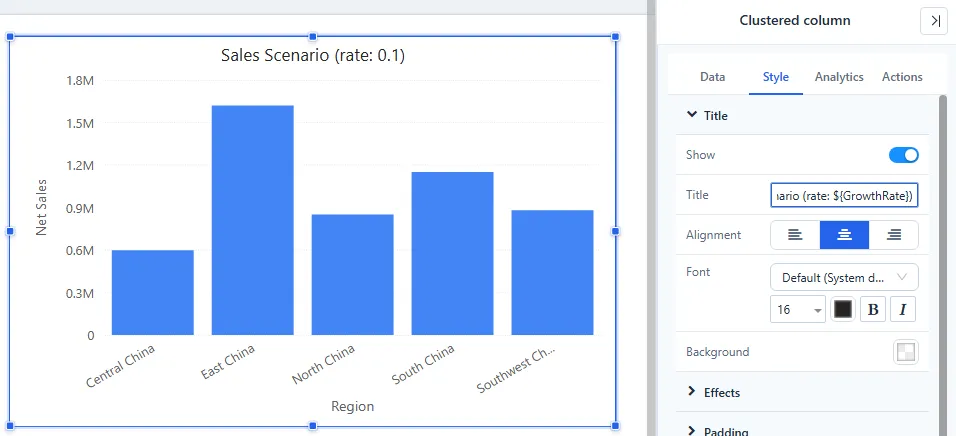
Sales Scenario (rate: ${GrowthRate}) |
| Text, Shape text, Rich text, Image URL, Web page address | {{param.name}} (see Dynamic Values) |
Scenario: {{param.Scenario}} |
| Model SQL (SQL views, custom SQL) | ${name} for report and global parameters; #{system.name} for system variables |
WHERE sales_year = ${ReportYear} AND owner = #{system.username} |
| Report URL | ?name=value or ?param_name=value |
?GrowthRate=0.15 |
| Default tab rules, visibility rules | Pick the parameter in the dialog | Show the Details tab when Scenario is Optimistic |
The current value of a parameter is, in order: the value of a filter bound to it, the value in the URL, the parameter’s Default value. When the report opens with the parameter in the URL, a filter bound to it starts with that value. Several values (from a multiple selection or a comma-separated URL value) are passed as a JSON array, which only ${name} in model SQL expands to an IN list.
When the value changes, only components that reference the parameter re-query. Several filters bound to the same parameter always show the same value.
Component titles
To show a parameter’s value in a title, select the component, open Style → Title (turn on Show if needed) and type text with one or more ${name} placeholders, for example Sales Scenario (rate: ${GrowthRate}). When GrowthRate is 0.1, the title reads Sales Scenario (rate: 0.1): the value is inserted as it is, so a percent sign after it does not turn a decimal rate into percentage points.
- The name inside
${...}must match the parameter name exactly, including case and spaces, with no spaces inside the braces. - The title is resolved by the component’s query, so it changes only after a successful query.
- Title placeholders are not MDX. In a calculated measure use
ParamRef("name")or${name}; see Using Parameters in Calculated Measures.
Let readers change the value
Bind a filter to the parameter: choose Data → Data source → Parameter on a Dropdown, List box, Button group, Radio/Checkbox, Numeric slider or Date. See Bind Filters to Parameters.
Related: What-if Analysis · Using Parameters in Calculated Measures · Default tab rules