
System
Single Sign-On Overview
How sign-in through LDAP, OAuth 2.0, SAML 2.0 and CAS works in Datafor, which addresses to register at the identity provider, and what happens to new users and on logout.
With single sign-on, people sign in to Datafor with the account they already have in your directory or identity provider instead of a Datafor password. This page explains what all methods have in common. The field-by-field settings are on the pages of each method: LDAP, OAuth 2.0, SAML 2.0 and CAS.
The Single sign-on page
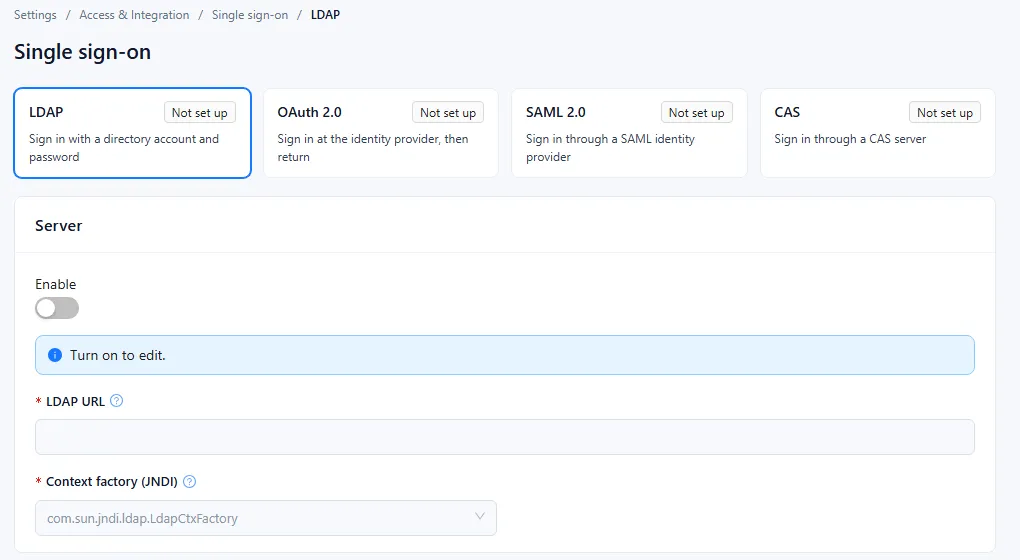
Open Settings › Access & Integration › Single sign-on. Each method has a card at the top. A card is shown only when its plugin is installed in pentaho-solutions/system/; the page itself appears when at least one of them is installed.
| Card | Plugin | How users sign in |
|---|---|---|
| LDAP | datafor-ldap |
On the Datafor sign-in page, with their directory user name and password |
| OAuth 2.0 | datafor-oauth2 |
At the identity provider, then back in Datafor |
| SAML 2.0 | datafor-saml |
At the SAML identity provider (IdP), then back in Datafor |
| CAS | datafor-cas |
At the CAS server, then back in Datafor |
Each card shows the method’s status: On (enabled), Off (configured but not enabled), Not set up (the method’s address field is empty: LDAP URL, Authorization endpoint, IdP SSO URL or CAS server URL) or Unknown (the status could not be read). Select a card to show that method’s settings below the cards. If the current method has unsaved changes, Datafor asks you to save or discard them first; the cards refresh after each save.
Each method has its own Enable switch. While it is off, the fields are greyed out.
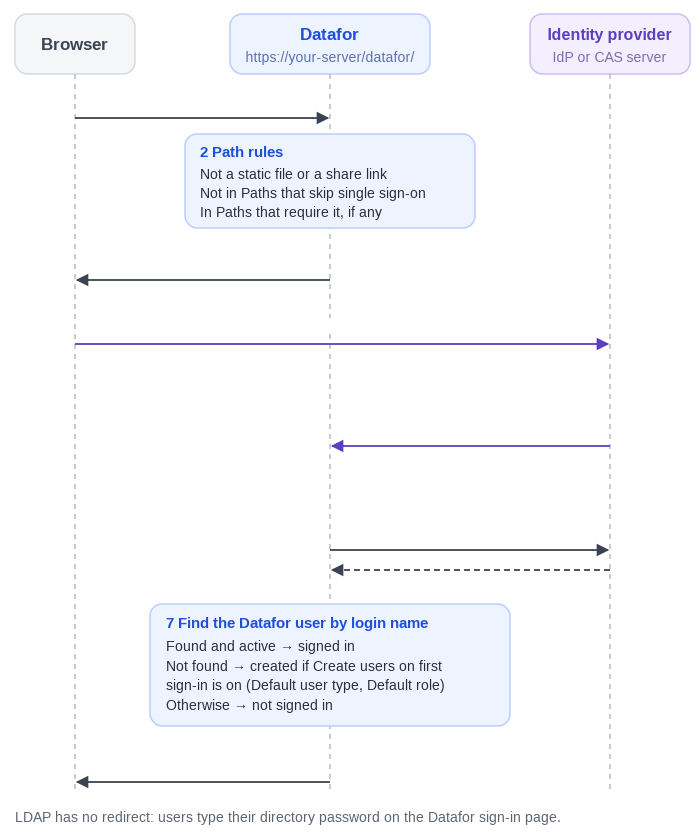
How a sign-in works (OAuth 2.0, SAML 2.0, CAS)
OAuth 2.0, SAML 2.0 and CAS send the browser to the identity provider and back. LDAP does not: Datafor checks the user name and password typed on its own sign-in page against the directory.
-
Datafor decides whether the request needs single sign-on. Only a browser
GETrequest without a Datafor session can start a sign-in. Datafor lets the request through unchanged when:- it is for a static file (the last part of the address has a file extension other than
.htmlor.jsp); - it opens a share link, or comes from a page opened through one;
- its address contains an entry of Paths that skip single sign-on, or one of the built-in entries
/Login,/Logoutand/saml/consumer; - Paths that require single sign-on has entries and the address contains none of them. While that list is empty, every other address goes through single sign-on.
An entry matches when the request address contains it as text, for example
/plugin/datafor/api/integrateor/api/repos. Wildcards such as*are not supported. A skip entry wins over a require entry. - it is for a static file (the last part of the address has a file extension other than
-
Datafor remembers the requested page and redirects the browser to the provider: OAuth 2.0 to the Authorization endpoint, SAML 2.0 to the IdP SSO URL, CAS to the Login URL.
-
The user signs in at the provider, which then sends the browser back to Datafor.
-
Datafor checks the result and reads the user name.
- OAuth 2.0: Datafor exchanges the code for an access token at the Token endpoint, calls the UserInfo endpoint with it, and reads the user name with Username JSONPath.
- SAML 2.0: Datafor checks the response’s signature with the IdP signing certificate and reads the Username attribute.
- CAS: Datafor validates the ticket at the CAS server URL (CAS 2.0 protocol) and takes the user name CAS returns.
-
Datafor finds the Datafor user with that login name. A user who is not active in Datafor is not signed in. A user who does not exist is created when Create users on first sign-in is selected (see New users); otherwise the user is not signed in.
-
Datafor creates a session and opens the page the user originally requested.
If more than one of OAuth 2.0, SAML 2.0 and CAS is on, CAS is tried first, then OAuth 2.0, then SAML 2.0. Turn on only one of them.
Register Datafor at the identity provider
The provider must know the addresses it sends users back to. Use the address users open Datafor with.
| Method | Setting at the provider | Value |
|---|---|---|
| OAuth 2.0 | Redirect URI | The address of the Datafor page where the sign-in started, without its query string, for example https://bi.example.com/datafor/oauth2 (see below). |
| SAML 2.0 | Assertion Consumer Service (ACS) / reply URL, HTTP POST binding | https://bi.example.com/datafor/saml/consumer |
| SAML 2.0 | Entity ID / identifier | The value of SP entity ID, for example bi |
| CAS | Service (service registry entry) | A pattern that matches every Datafor address, for example ^https://bi\.example\.com/datafor/.*. Datafor sends the address of the requested page, without the ticket parameter, as the service. |
OAuth 2.0 redirect URI. Datafor sends the address of the page the user opened as redirect_uri. Most providers accept only redirect URIs that are registered exactly, so give users one fixed entry point:
- Register
https://bi.example.com/datafor/oauth2and send users to that address to sign in. Opening/datafor/oauth2always starts an OAuth 2.0 sign-in, whatever the path rules say, and opens the Datafor home page afterwards. - A user without a session who opens another Datafor address, such as a bookmark or a report link, starts the sign-in from that address, and it becomes the
redirect_uri. Register those addresses as well, or use a prefix or wildcard rule such ashttps://bi.example.com/datafor/*if your provider supports one.
Protocol and host of the return addresses
Datafor builds these addresses from the request it receives: the host name and port come from the request, and the protocol (http or https) from fully-qualified-server-url in pentaho-solutions/system/server.properties. The SAML ACS URL that Datafor puts in its sign-in request is that whole value followed by saml/consumer. The file ships with http://localhost:28080/datafor/, so:
- Set
fully-qualified-server-urlto the public address, for examplehttps://bi.example.com/datafor/, and restart Datafor. Otherwise OAuth 2.0 and CAS return addresses start withhttp://even when users use HTTPS, and SAML requests name alocalhostACS URL. - Behind a reverse proxy, forward the original
Hostheader. See Deploying Datafor Behind Nginx.
Site URL on the Site address page does not change these addresses.
New users
Each method has its own New users group:
| Field | Effect |
|---|---|
| Create users on first sign-in | When a user who has no Datafor account signs in, create the account. The login name is the user name from the provider. |
| Default user type | User type of accounts created this way, for example Reader. Available only when Create users on first sign-in is selected. |
| Default role | One or more roles given to accounts created this way. Same condition. |
These values apply only when an account is created. Users who already exist keep the user type and roles they have in Datafor; change them on the Users page. If Create users on first sign-in is cleared when you save, Default user type and Default role are cleared as well. Without automatic creation, create the users in Datafor in advance with the same login names as at the provider.
Logout
Logout in the user menu ends the Datafor session and shows the Datafor sign-in page. It does not sign the user out of the identity provider, and Datafor does not open the provider’s logout address. While the provider session lasts, opening a Datafor page that goes through single sign-on signs the user in again without a prompt. To end both sessions, users also sign out at the provider.
Embedded reports
Share links never go through single sign-on. For reports embedded in another application, an embed token signs the user in without a provider redirect, and the sign-in pages of many providers cannot be shown inside an iframe. See Signing In Users of Embedded Reports.
Troubleshooting
| Problem | Likely cause | What to do |
|---|---|---|
| The provider reports a redirect URI or reply URL mismatch | The address Datafor sent is not registered, or it starts with http:// while https:// is registered |
Register the addresses above. Check fully-qualified-server-url in server.properties and restart. |
SAML requests name localhost as the ACS URL |
fully-qualified-server-url still has the shipped value |
Set it to the public address and restart. |
| Sign-in at the provider succeeds, but the user is not signed in to Datafor | The user does not exist in Datafor and Create users on first sign-in is off, the user is not active, or the user name read from the provider is empty | Create or activate the user, or turn on Create users on first sign-in. Check Username JSONPath or Username attribute. |
| A page that should be public asks for sign-in, or the reverse | Path rules | Adjust Paths that skip single sign-on and Paths that require single sign-on; entries match as text contained in the address. |
| Sign-in does not start at all | Enable is off, the address is excluded by the path rules, or the browser already has a Datafor session | Check the method’s settings; test in a private browser window. |
| After Logout, the user is signed in again at once | The provider session is still active | Sign out at the provider as well. |