
System
LDAP
Let users sign in to Datafor with their LDAP directory account, configured on the Single sign-on settings page.
LDAP is set up on Settings › Access & Integration › Single sign-on. For the page, the other sign-in methods and the New users settings, see Single Sign-On Overview.
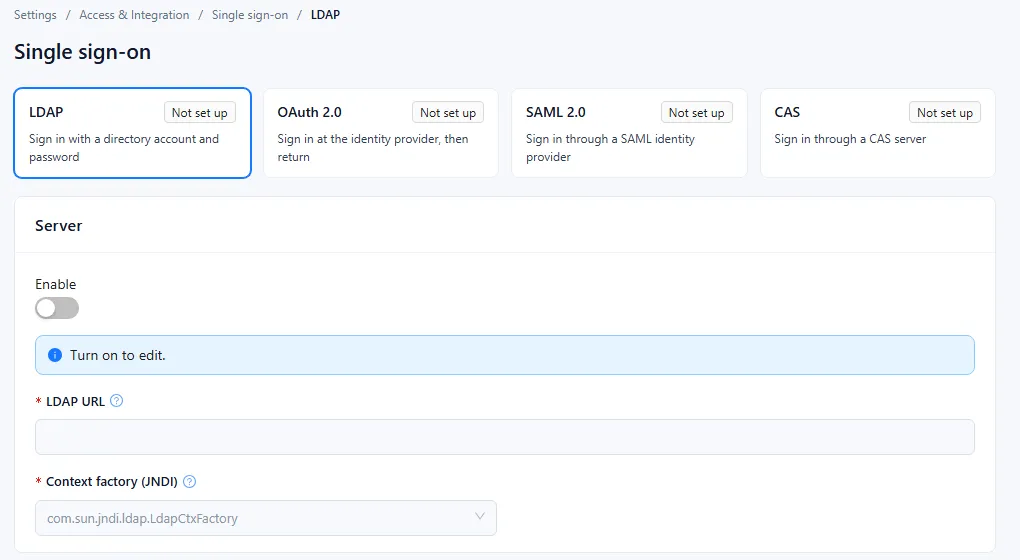
1. LDAP settings
Select the LDAP card (“Sign in with a directory account and password”). Fields marked * are required while Enable is on.
| Section | Field | What to enter | Notes |
|---|---|---|---|
| Server | Enable | Turn on to use LDAP sign-in. | Turn on before editing the other fields. |
| Server | LDAP URL * | Directory server address with protocol and port, e.g. ldap://127.0.0.1:389 or an ldaps:// address. |
While empty, the card shows Not set up. |
| Server | Context factory (JNDI) * | com.sun.jndi.ldap.LdapCtxFactory |
The only option, selected by default. |
| Authentication | Authentication method * | Simple authentication or Anonymous authentication. | |
| Authentication | Bind DN | DN of the account Datafor uses to connect to the directory, e.g. cn=admin,dc=example,dc=com. |
|
| Authentication | Bind password | Password of the Bind DN account. | |
| New users | User DN pattern * | Template that builds a user’s DN from the name typed at sign-in, e.g. cn=${username},dc=example,dc=com. |
${username} is replaced by the sign-in name. |
| New users | Create users on first sign-in | Select to create the Datafor user automatically the first time a directory user signs in. | |
| New users | Default user type | User type given to users created this way, e.g. Reader. |
Available only when Create users on first sign-in is selected. |
| New users | Default role | One or more roles given to users created this way. | Same as above. |
2. Test and save
- Click Test connection, at the end of the Authentication settings, to check the connection to the LDAP server with the values currently in the form; you don’t have to save first. The button is available only while Enable is on. A successful check shows Validation successful; otherwise the error is shown.
- Click Save in the bar that appears at the bottom once something has changed; Discard drops the changes.
- To switch LDAP off, turn off Enable and click Save. With Enable off, Datafor saves without checking the required fields.
- If Create users on first sign-in is cleared when you save, Default user type and Default role are cleared as well.
3. Troubleshooting
| Problem | Likely cause | What to do |
|---|---|---|
| Test connection fails to reach the server | Wrong LDAP URL, port or protocol, or a firewall in between | Check the address and that the Datafor server can reach the directory port. |
| Test connection reports an authentication error | Wrong Bind DN or Bind password, or the wrong Authentication method | Check the bind account, or use Anonymous authentication if the directory allows it. |
| Users cannot sign in | User DN pattern does not match the directory structure | Compare the pattern with a real user DN in the directory. |
| No Datafor user is created on first sign-in | Create users on first sign-in is off | Select it, set Default user type and Default role, then save. |