
System
Backup and Restore
Back up Datafor manually or on a schedule, upload and download backup packages, restore a backup, and set how long backups are kept.
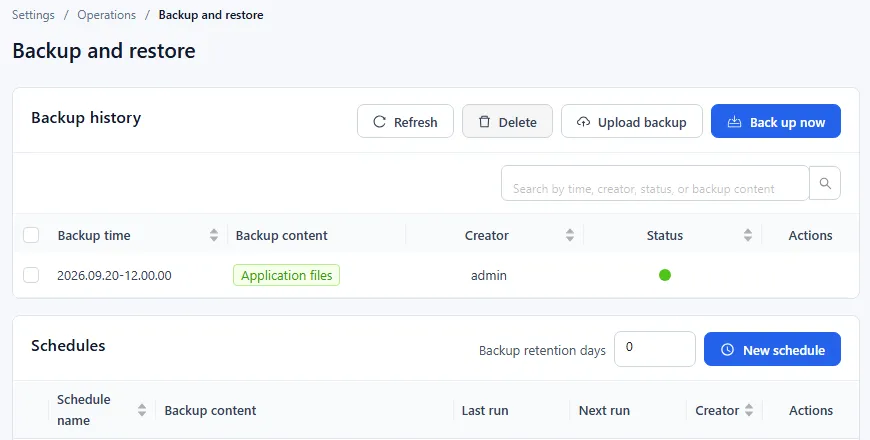
Go to Settings › Operations › Backup and restore. The page has a status bar at the top and two panels: Backup history (all backups, manual, scheduled and uploaded, plus the retention period) and Schedules (automatic backups).
All times on the page are shown as YYYY-MM-DD HH:mm in your browser’s time zone. Hover over a time to see it to the second with its UTC offset.
1. Backup content
Each backup contains one or more of these parts:
| Backup content | What it holds |
|---|---|
| Content and settings | Reports, models, users and system settings: the five repository databases of the bundled PostgreSQL (hibernate, quartz, jackrabbit, datafor, upload), exported with pg_dump. The export is a consistent snapshot, so Datafor keeps running while it is taken. The AI Agent stores its data in the same databases, so this also includes AI conversation history, LLM profiles and their encrypted API keys. |
| Uploaded data files | Data files uploaded to Datafor, such as Excel and CSV datasets. |
| Application files | Only the Datafor program, its plugins and JDBC drivers. It does not include the AI Agent program. |
When Content and settings is not selected, the backup dialog warns “This backup leaves out reports, models and users.”
Backups are stored as .zip files in the backup/ folder of the Datafor installation directory (the folder that contains tomcat and pentaho-solutions), or in the folder set in Backup settings. Each package holds:
db/<database>.dump: onepg_dumpexport per repository database (when Content and settings is included);- the folders of the other parts, under their paths in the installation directory;
manifest.properties: the Datafor version, the parts, the time the backup was taken (with its time zone), and the size and SHA-256 checksum of each database export. Datafor checks these before it restores the package.
Backups made by earlier versions have no manifest and contain the PostgreSQL data folder instead of db/. They can still be restored, but their data may not be consistent: that folder was copied while the database was running.
When the repository is on your own PostgreSQL server
If you followed Repository Separation Deployment Guide and at least one of the five databases in tomcat/conf/server.xml is not on the bundled PostgreSQL, Datafor no longer backs up or restores Content and settings. Back up those databases with your database server’s own tools. The page says so at the top, Content and settings cannot be selected in Back up now and in the schedule dialog, and existing schedules that include it skip it (“Content and settings skipped (external repository)” below the status). Application files and Uploaded data files are still backed up.
What backups do not include
No backup includes the ai-agent/ folder, and in particular not ai-agent/instance-secrets.env. That file holds MODEL_PROFILE_ENCRYPTION_KEY, the key that encrypts the LLM API keys stored in the database.
- Restoring on the same server: nothing extra to do; the key file is still there.
- Restoring on a new server: copy
ai-agent/instance-secrets.envfrom the old server to the new one as well. Without the original key, the stored LLM API keys cannot be decrypted and must all be entered again. - Keep a copy of
instance-secrets.envin a safe place together with your downloaded backups.
Status bar
Only a backup with Content and settings can bring back reports, models and users, so the bar at the top of the page tracks the most recent successful one:
| Bar | Meaning |
|---|---|
| Green | The last successful backup with content and settings is less than 7 days old. The bar shows how long ago it was and when. |
| Yellow | The last one is more than 7 days old. Check that the backup schedule is running. |
| Red | “No backup can restore reports, models and users yet”. Either there are no successful backups, or none of them include content and settings. Click Create a daily backup schedule to open the schedule dialog with Content and settings selected, every day at 02:00. |
Backups whose file is no longer on disk do not count.
After a restore, a second bar shows its result for 7 days: “Last restore succeeded”, or “Last restore failed” with the reason and whether everything was put back.
2. Back up now
- In Backup history, click Back up now.
- In the New backup dialog, select the Backup content. Content and settings is selected by default.
- Click OK. “Backup task has been successfully created.” appears and the backup is added to the list.
Backup history has these columns:
| Column | What it shows |
|---|---|
| Backup time | When the backup was taken, with the size of the package below once it has finished. |
| Backup content | The parts in the backup. Content and settings is highlighted in blue. |
| Source | The schedule name for scheduled backups, Manual, Uploaded, or Automatic, before a restore. Backups made by earlier versions show Manual or uploaded. The user who created the backup is shown below. |
| Duration | How long the backup took. Shows “—” while it runs. |
| Status | Succeeded, Failed, In progress, or File missing when the record is there but the package is no longer in the backup/ folder. For a failed backup the error is shown below the status; hover over it to read all of it. |
| Actions | See below. |
The list refreshes every 5 seconds while a backup is in progress, and stops when all backups have finished. Use Refresh to reload the list, and the search box to find backups by time, source, creator, status or backup content.
3. Upload a backup package
Click Upload backup and select a backup package (.zip), for example one downloaded from another Datafor server. The upload starts as soon as you select the file. Datafor then reads the whole package to check it: a damaged package, or one with files outside the folders a backup can contain, is marked Failed with the reason and its file is removed. A package made by a newer version of Datafor is refused. A package made by an earlier version (without a manifest) is accepted and marked Old format in the list. A good package is saved in the current backup folder, appears in Backup history and can be restored. If a backup with the same name is already there, “The file already exists” appears and nothing is replaced.
4. Row actions: restore, download, delete
Each successful backup shows Restore in the Actions column. The ⋯ menu next to it has the other actions:
| Action | What it does |
|---|---|
| Restore | Restores the system from this backup. Available only for successful backups whose file is there. See below. |
| Download (in ⋯) | Downloads the backup package. Available only for successful backups whose file is there. |
| Delete (in ⋯) | Deletes the backup and its file permanently. If the file is in use and cannot be deleted, the record is kept and a message says so. |
A backup that is still in progress has no actions. To delete several backups at once, select their check boxes and click Delete in the panel header.
Restore a backup
- Click Restore on the backup row. The dialog is titled “Restore the backup from” followed by the backup time.
- Check what the restore does:
- Replaces lists the parts in this backup. They are replaced with the versions in the backup.
- Keeps as is lists the parts that are not in this backup. They stay as they are now.
- If the backup has only Application files or Uploaded data files and no Content and settings, a yellow warning appears. Restoring such a backup puts the program back to the version in the backup while the data stays at the current version, so some features may not work, or the server may fail to start. When the versions differ, the warning shows both. You can still restore it.
- A backup made by an earlier version shows a warning that its data may not be consistent.
- Leave Back up the current state before restoring selected unless you are sure you will not need the current state again.
- Type
RESTOREin the box. Restore and restart stays disabled until you do. - Click Restore and restart.
Before it stops anything, Datafor checks that the backup record and its file are there, that the backup succeeded, that no other backup is running, that the package passes its checks, and that the restore script is in the installation directory. If one of these fails, the dialog says which and Datafor keeps running.
Datafor then stops, restores the backup and starts again. The page shows “Restoring and restarting” with the elapsed time and reloads itself when the server is back. You will usually need to sign in again. If the server has not stopped after about 90 seconds, the page says the restore may not have started; check the output of the restore script on the server. If the server is still not back after 20 minutes, the page says so but keeps waiting.
While Datafor is stopped, the restore program:
- checks the package again and that there is enough free disk space;
- backs up the parts it is about to replace (if you left the option selected). After the restart this backup appears in Backup history with the source Automatic, before a restore, and the retention period applies to it;
- renames the current databases and folders instead of deleting them, then restores the ones from the backup. The bundled PostgreSQL is started for this and stopped again afterwards;
- clears
pentaho-solutions/system/jackrabbit/repositorywhen it restored Content and settings, so the first start takes longer while the search index is rebuilt; - deletes the renamed copies only when everything succeeded. If any step fails, it puts the renamed databases and folders back, so Datafor starts as it was before the restore.
The steps are written to backup/restore-<date>-<time>.log on the server, and the result is shown at the top of the page after the restart.
Audit records and restores
Backups, restores, uploads, downloads, deletions and changes to schedules, retention and backup settings are recorded in the Audit Log under Backup & restore. A scheduled backup is recorded with the source System; one started with Run now on a schedule is recorded under the schedule’s owner.
The audit records are stored in a database that Content and settings restores. So after such a restore:
- the log ends at the time the backup was taken. Records written after it are gone from the log; they survive only in the automatic backup made before the restore. If you need them, export them before you restore;
- the restore itself is recorded when Datafor starts again, under the user who started it.
5. Schedules
The Schedules panel lists automatic backups with Schedule name, Backup content, Frequency (for example “Every weekday · 02:00” or “Run once” with its date and time), Last run, Next run and Status:
- Active: the schedule will run again.
- Ended: the schedule has no next run, for example a Run once schedule that has already run, or a repeating schedule past its end date.
- Paused: the schedule is paused and does not run until you resume it.
Each row has these actions:
| Action | What it does |
|---|---|
| Run now | Runs the schedule once right away. The backup appears in Backup history when it starts. Not available for an ended schedule. |
| Pause / Resume | Pauses the schedule in the scheduler, or resumes it. A paused schedule stays paused when you edit it. Not shown for an ended schedule. |
| Edit | Opens the schedule dialog. |
| Delete | Deletes the schedule. Backups it already made stay in Backup history. |
To add a schedule:
- Click New schedule.
- Enter a Schedule name and select the Backup content.
- Choose Repeat: Run once, Daily, Weekly, Monthly, Yearly or Cron (then enter a Cron string).
- Set the Start time (not for Cron) and the Start date. For repeating schedules, choose No end date or Ending with an end date.
- Click Save.
Backups created by a schedule appear in Backup history.
Retention period
The retention period is set in the toolbar of Backup history: “Delete backups and their files after N days (0 keeps them forever)”. Type a number, then press Enter or click elsewhere to save it. “Saved” appears when it is saved; if saving fails, the reason is shown.
0keeps all backups.- A value above 0 deletes backups older than that number of days, together with their files. It applies to all backups in Backup history, not only those created by schedules, including failed ones.
- Whatever the value, the latest 3 successful backups with Content and settings whose files are still there are always kept, so a schedule that stopped for a while does not lose every backup that can bring back reports, models and users. When the repository is on your own PostgreSQL server, the latest 3 successful backups are kept instead.
- The first clean-up runs about a minute after you save, then once a day. If the new value would delete backups that are already in the list, a confirmation shows how many before anything is saved.
6. Backup settings
Click the gear button in the Backup history header to open Backup settings.
Backup folder
By default, backups are stored in the backup/ folder of the installation directory, on the same disk as Datafor. Enter a full path to keep them somewhere else, preferably on another disk or a mounted NAS, for example D:\datafor-backup or /mnt/nas/datafor-backup. Leave it empty to go back to the default.
- The folder must be a full path that Datafor can create and write to. It cannot be inside
tomcat,pentaho-solutionsor the database folder, because a restore replaces those folders as a whole. - The dialog shows the current folder and its free space, and warns when it is on the same disk as Datafor.
- The change only affects new backups. Existing backups stay where they are and can still be downloaded and restored.
- The setting is stored in
backup/settings.propertiesin the installation directory. Upgrades do not overwrite it.
Notify when a backup or restore fails
Enter the user names of the people to notify. When a manual or scheduled backup fails, or a restore fails, Datafor sends each of them a message through Subscriptions and alerts, using the delivery method that person chose there (email or IM). If Subscriptions and alerts is not installed, the dialog says so and no messages are sent.
7. Keep a copy off the server
Unless you set a backup folder on another disk or a NAS, backups are stored on the same server as Datafor. Download important backups and keep them outside the Datafor server, so that they survive a disk or server failure.