
System
System Configuration
The platform and tenant time zones, tenant-wide defaults for reports and models, query and refresh limits, the first day of the week and the samples folder shown on Home.
Settings › General › System configuration holds the time zone and tenant-wide defaults. Only administrators see it.
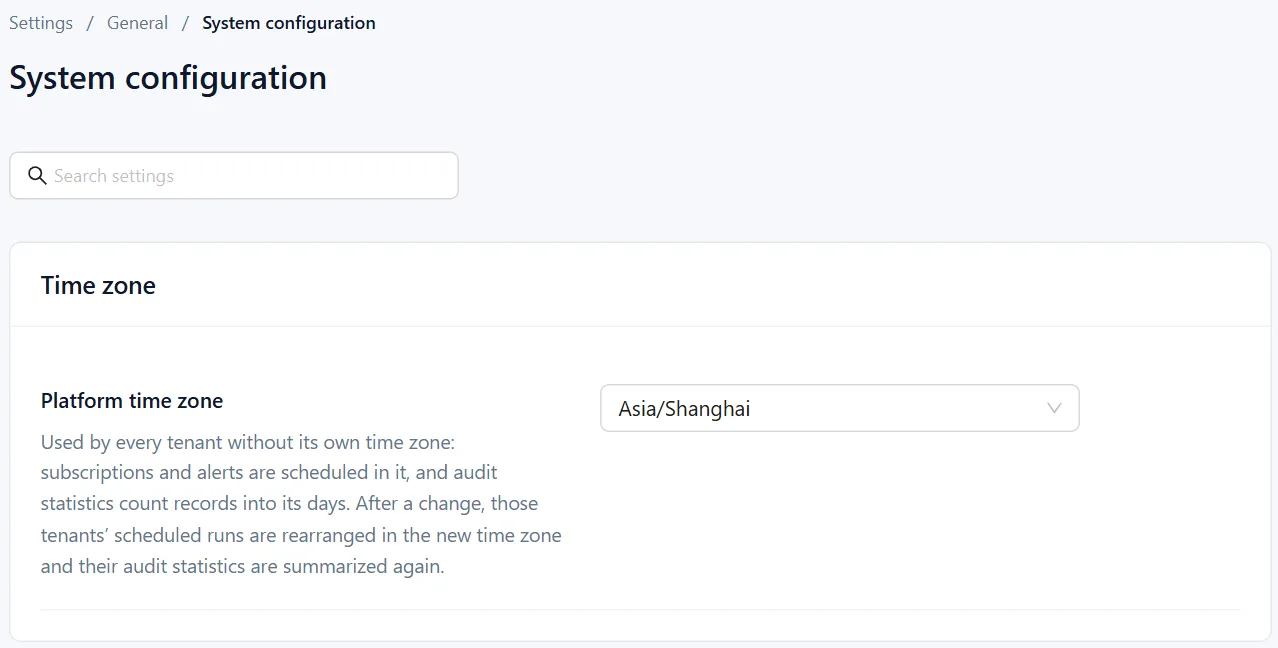
Time zone
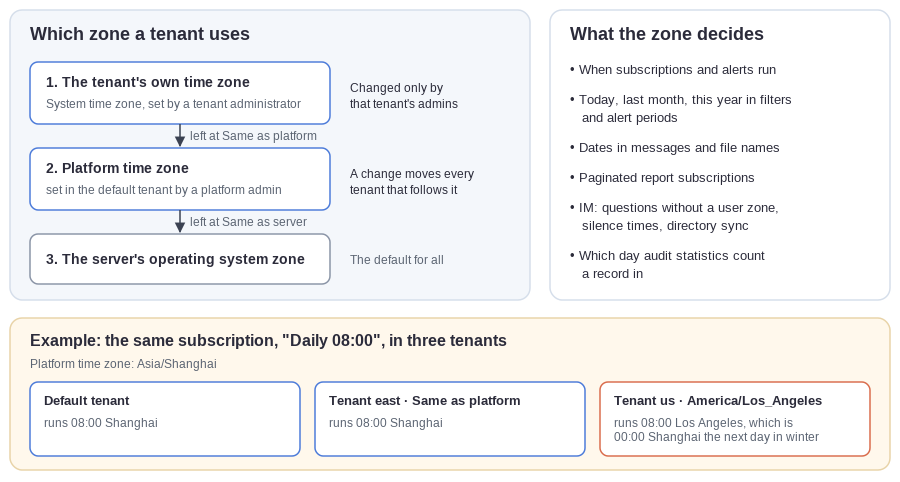
The time zone decides, for a tenant:
- when subscriptions, alerts and paginated report subscriptions run, and what today, last month or this year mean in their filters and alert periods, message dates and file names;
- for IM apps, the dates of questions asked without a user time zone, silence times and the directory sync schedule;
- which day each record is counted in on the Audit Log dashboards.
There are two levels. In the default tenant the row is called Platform time zone: it is the zone of every tenant that has not set its own. In any other tenant the row is System time zone, and its first option, Same as platform (zone), keeps the tenant on the platform zone and follows it when it changes.
| Default tenant | Other tenants | |
|---|---|---|
| Row title | Platform time zone | System time zone |
| Default | Same as server (zone): the zone of the Datafor server’s operating system | Same as platform (zone) |
| Who can change it | Platform administrators (Only platform administrators can change it.) | Administrators of that tenant (Only administrators of this tenant can change it.) |
| A change affects | The platform zone and every tenant that follows it | Only this tenant |
Pick the zone your business days are counted in. Only region names such as Asia/Shanghai, Europe/Berlin or America/New_York, and UTC, are offered: they carry daylight saving rules, which a fixed offset such as UTC+08:00 does not. Type in the list to search; the search matches the text shown, so typing Same finds the follow option again after you picked a zone.
A time zone change is saved with the other settings on the page. After a change, the next run times of the affected tenants’ subscriptions and alerts are rearranged within about 30 seconds, and their audit statistics are summarized again, which can take a while on a large log. Other tenants are not touched. A change is recorded in the audit log as Edit system settings.
Settings
Some settings only seed new reports or models; others apply to all reports after they are reopened.
| Group | Setting | Default | Applies to |
|---|---|---|---|
| Reports | Report default font | System default | New reports. Independent of the interface font. |
| Default color scheme: Default, Classic, Color-blind friendly, Pastel, Paired, Dark | Default | New reports | |
| Default tooltip style: Dark, Light | Dark | New reports | |
| Empty data message: Show and Text (up to 100 characters) | Show on, text empty | All reports and components without their own empty-data setting, after they are reopened. Empty text shows No data in each viewer’s language. | |
| Modeling | Default measure format: Number (#,##0, #,##0.0, #,##0.00) and Percentage (0%, 0.0%, #,##0.00%) |
#,##0.00 and #,##0.00% |
New measures, after reopening the modeler. Number is used for new measures and calculated measures; Percentage only for a calculated measure created from a Metrics Library metric whose unit is %. |
| Default model cache expiration (seconds, 0 = never) | 0 | New models, after reopening the modeler | |
| First day of the week: Monday, Sunday | Monday | All reports after reopening: “this week”, “last week”, date pickers, calendar chart. Match the model’s week definition. | |
| Queries and refresh | Default chart query row limit (100–200,000 rows) | 5,000 | All reports after reopening, unless the page sets its own Max query records |
| Minimum auto-refresh interval (1–86,400 s) | 2 | All reports, including shared and embedded ones: shorter refresh intervals run at this value |
New reports store the font, color scheme and tooltip style on their first Save or Save as; changing them here later does not change those reports. The empty data message is not stored in reports: it is read when a report opens. New reports also start with the table style Minimal, which is not configurable here.
Query timeout and concurrency are on the Query engine page, linked from Queries and refresh for administrators of the default tenant; tenant administrators cannot change them. Reports wait for a query for the engine’s query timeout plus 10 seconds.
The Auto-build knowledge index switch, here until 10.02, is now at the top of Settings › AI Agent › Knowledge indexes; see Preparing Data for AI.
Home page
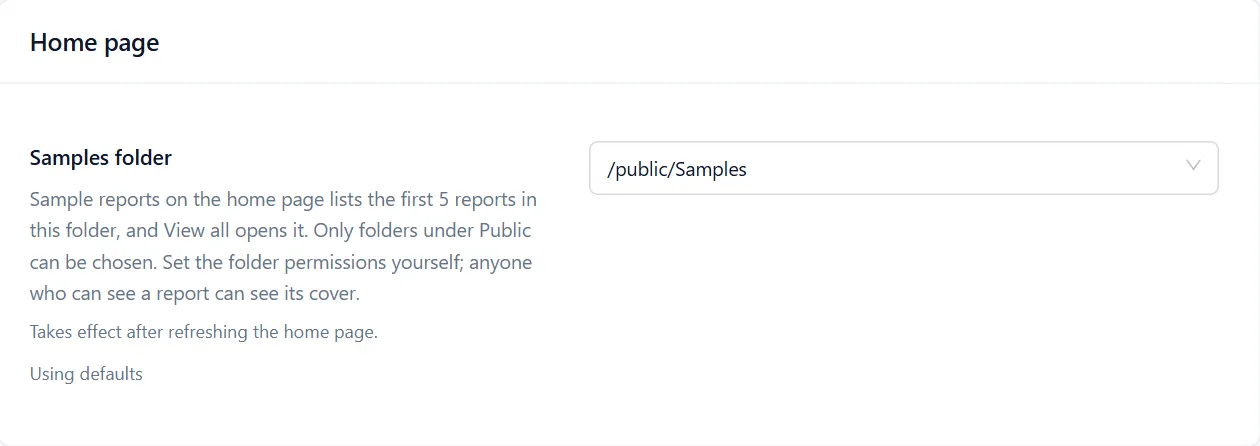
Samples folder is the folder whose reports Home lists under Sample reports: the five most recently modified reports placed directly in it, and View all opens it. The default is Public › Samples; the picker offers only folders under Public, and saving checks that the folder exists. The change shows after users refresh Home. How the list and the covers are made is described in Sample reports.
The folder’s permissions are yours to set: everyone who can read a report in it sees it on Home, together with its cover. Give readers read-only access so that a reader who opens a sample and saves it does not change it for everyone.
Working on the page
- Search settings filters the rows by name and description.
- Each row shows Using defaults or Custom; a changed row shows its default and Restore default.
- Once you change something, a bar at the bottom counts the changes (n unsaved changes) and offers View changes (each setting’s old and new value), Discard and Save. Setting a value back to what it was removes it from the count. Save sends only the changed settings, the time zone included. Leaving the page, or closing or reloading the browser tab, with unsaved changes asks first.
- Two administrators can save at the same time without overwriting each other’s settings; if both change the same setting, the later save wins. After saving, the page shows the latest values, including other administrators’ changes.
- Every saved change is recorded in the Audit Log as Edit system settings, with its old and new value.
Settings are stored per tenant.
Related: Settings Overview · Page Settings · Fonts