
System
User Creation and User Types
Create users, choose their user type and business roles, and reset a user's password.
Administrators create users and assign each one a User type. The user type sets the account’s basic capabilities, not its complete access to resources or data.
For how User Types, Business Roles, file/folder ACLs, RLS, and OLS combine, including conflict rules and audit guidance, see Permission Evaluation Overview.
1. Opening the user form
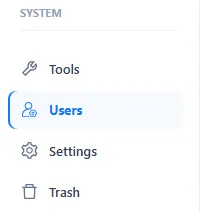
- In the left navigation, click Users.
- On the Users tab, click + (New) to create a user. To edit an existing user, click the login name in the list.
2. Filling in the user form
The form has three sections.
Account information
- Login name: the unique sign-in name. It cannot be changed after the user is created.
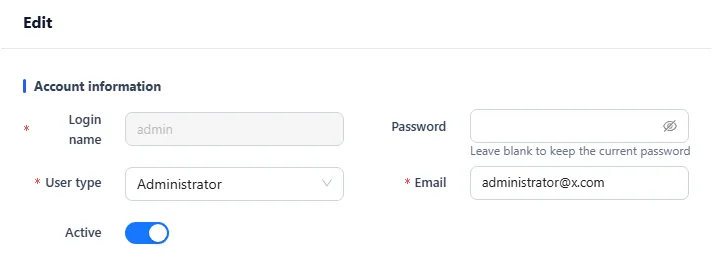
- Password: required when creating a user. When editing, the help text under the field reads “Leave blank to keep the current password”; enter a value only to reset it.
- User type: required. See Selecting a user type.
- Email: required; used for system notifications.
- Enabled: on by default. Turn it off to disable the account without deleting it.
Permissions
- Business roles: optional. See Assigning business roles.
- Enable AI Agent: gives the user access to the AI Agent. The number of active users with this switch on is limited by the AI users capacity in your license; enabling one more than the license allows fails with “AI user limit exceeded”.
Profile
- Name, Mobile, Company, Department, Title: optional.
3. Selecting a user type
Choose the user type from the User type dropdown:
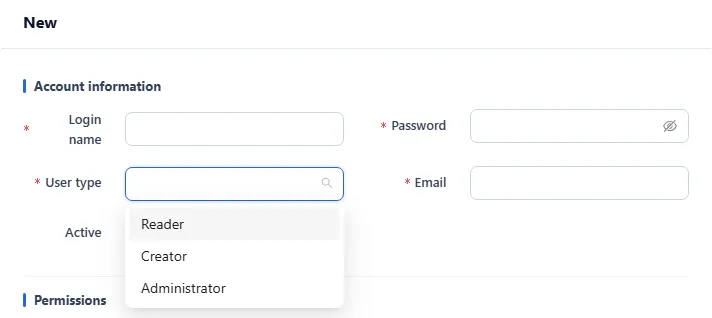
| User type | Permission scope | Typical users |
|---|---|---|
| Reader | Can view granted content: reports, dashboards, files and models shared with the user. Cannot create or edit content. | Business users, executives |
| Creator | Can create content and edit content they own or have been granted edit access to; shared-resource ACLs and Data Security still apply. | Data analysts, report designers |
| Administrator | Has full system administration permissions, including users, permissions and settings. | IT admins, system operators |
The User Type tab on the Users page lists the same types with their permission scope. An administrator can change a user’s type at any time by editing the user.
4. Assigning business roles (optional)
- Business roles group users into business audiences. Reference those roles in resource ACLs and Data Security policies to define access.
- All relevant memberships participate in evaluation. Adding a role can broaden access; a restrictive role is not automatically a denial of another role’s grants. See the conflict reference.
5. Saving
Click Submit to save.
6. Resetting a password
Administrators reset another user’s password in the user form. To change your own password, use Change password on the My Account page.
- In the left navigation, click Users.
- On the Users tab, click the login name of the user whose password you want to reset.

- In the Edit form, enter the new password in Password. The field is empty, and the help text under it reads “Leave blank to keep the current password”; leave it empty if you are changing other fields only.
- Click Submit.